
REMOTE DESKTOP SETUP.
The car ships with preinstalled, so your laptop can use the Jetson's desktop over the network. Set a password once, while the monitor is still plugged in, and you never need that monitor again.
SET A PERMANENT PASSWORD.
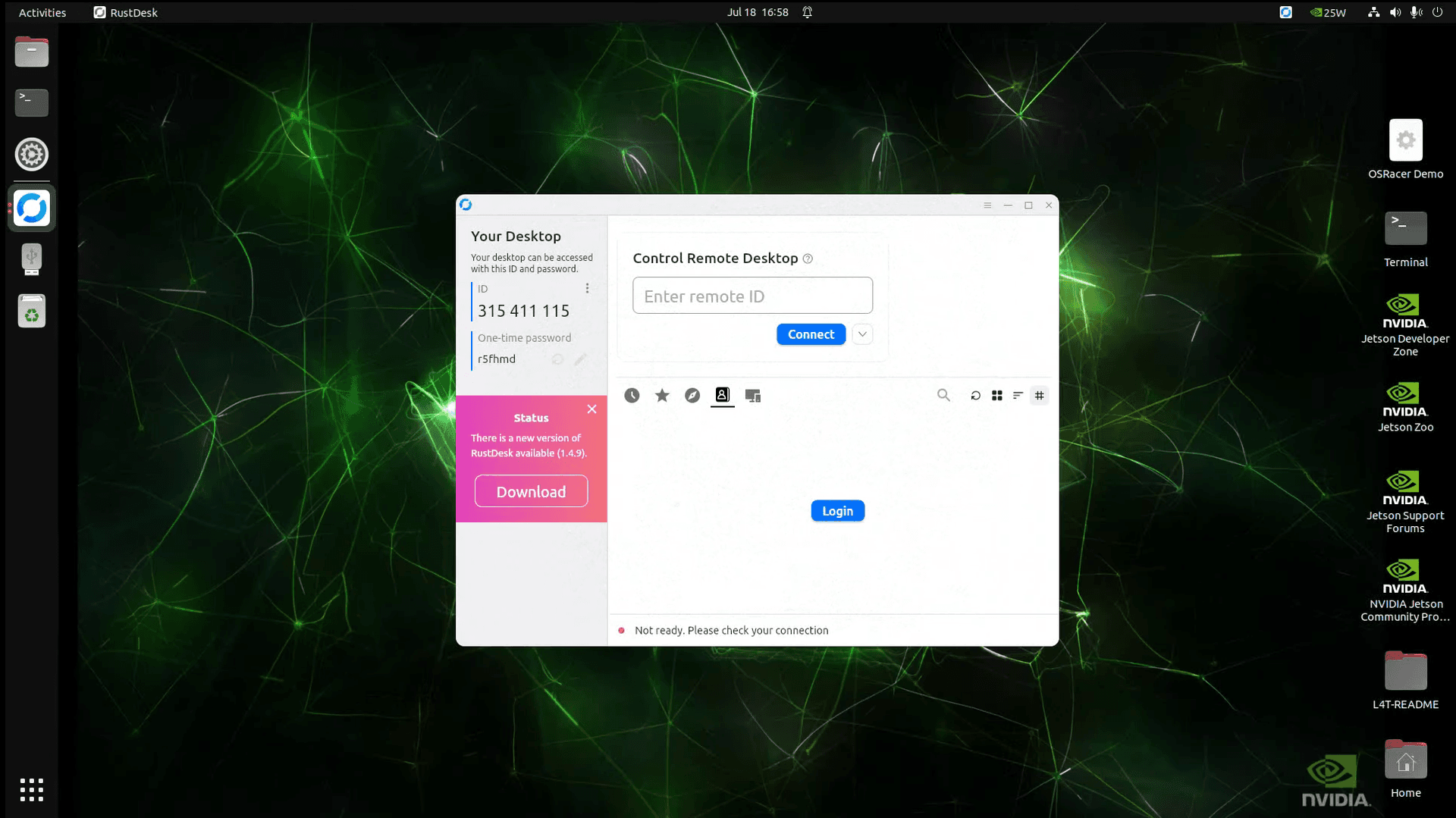
Out of the box, RustDesk shows a one-time password that changes every session, and it only shows it on the car's own screen. That works while a monitor is attached and stops working the moment it isn't, so the fix is a permanent password. This is the last thing you do on the monitor:
- Open RustDesk on the car's desktop (it starts with the system; its window shows "Your Desktop" with an ID).
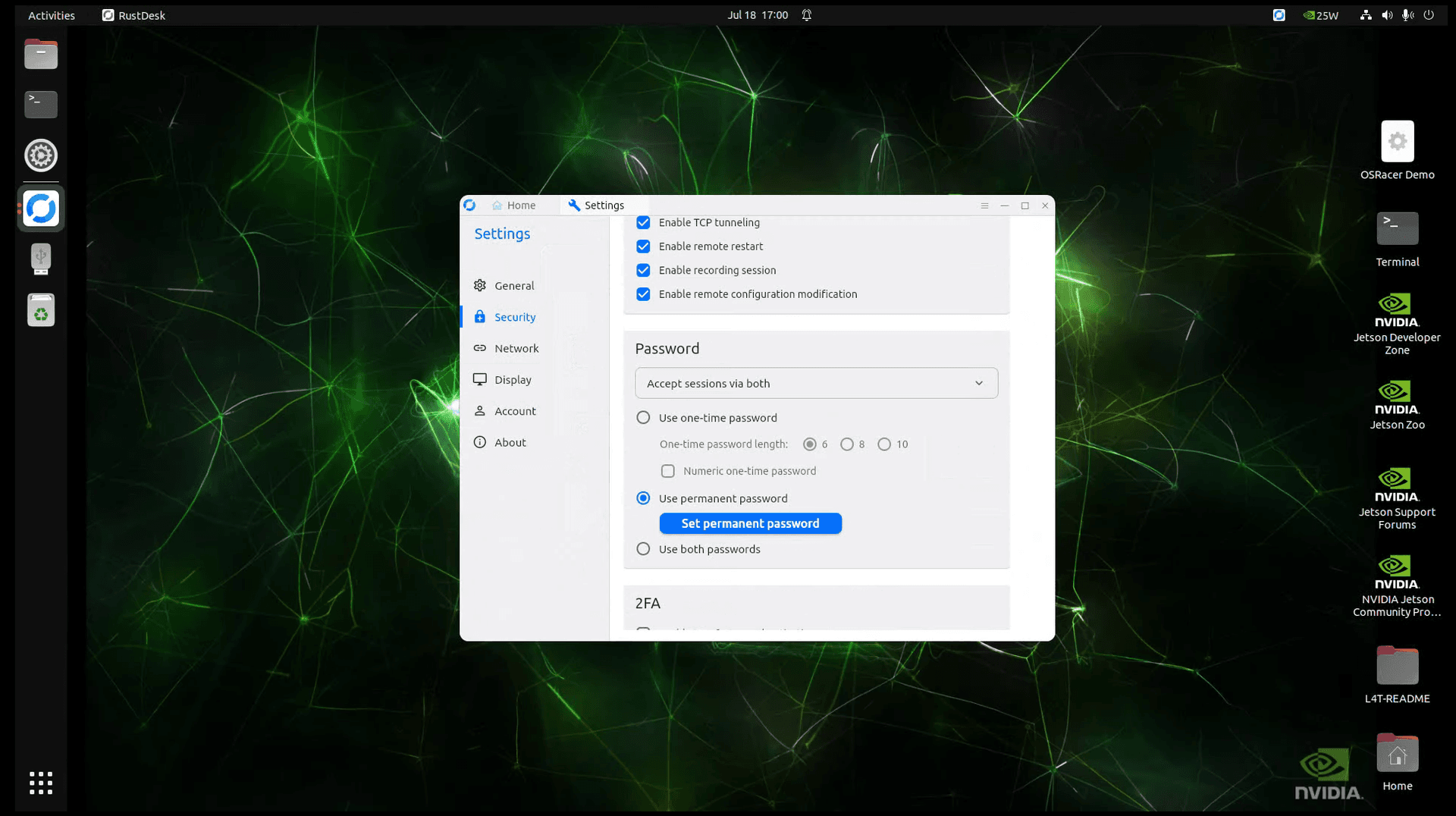
- Open Settings from the menu, then the Security tab.
- Scroll to the Password section and select Use permanent password.
- Click Set permanent password, pick one, and keep it somewhere sensible.
CONNECT BY ADDRESS.
Install RustDesk on your laptop from rustdesk.com, join the car's network, and type the car's address into the Control Remote Desktop field. Enter your permanent password and the Jetson's desktop opens in a window.
bash10.42.0.1 # on the car's access point (neoracer-1) 192.168.10.100 # on the cudy router
RUSTDESK REPLACES THE MONITOR.
Everything on the car is now reachable from your laptop: RustDesk for the full desktop, SSH for a terminal, the dashboard on port 8080, and JupyterLab on port 8888 where the next page happens. Unplug the monitor and keyboard. The day-to-day connection reference is Networking.